

Misplacing your passport or flight confirmation abroad triggers immediate panic. Your nearest consulate might sit hours away by train.
A smart digital setup cannot prevent physical theft. However, it completely changes how fast you recover from an emergency on the road.
This guide explains how to scan, encrypt, and store travel documents on your phone. You can access every file without an internet connection.
Why Digitizing Travel Paperwork Saves Vacations
Foreign consulates routinely recommend keeping digital copies of passports and entry visas. Legible backups help embassy personnel issue emergency replacements rapidly.
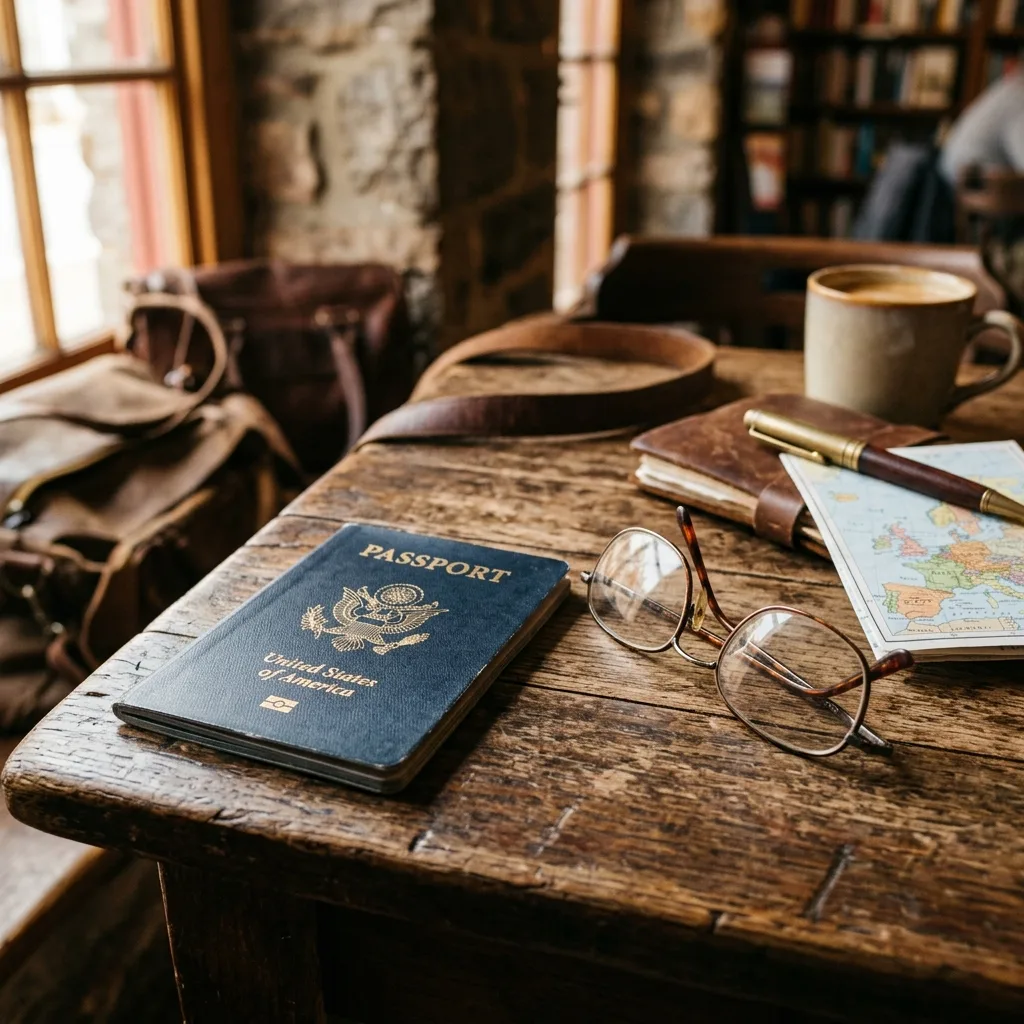
Beyond rare emergencies, digital organization removes daily travel friction. You pull up hotel vouchers, train reservations, and health cards in seconds without rummaging through luggage.
Remember that disorganized camera roll screenshots create chaos. You need a dedicated, clearly labeled folder system you can navigate under stress.
Building an Intuitive Folder Hierarchy
Design your folders for high-stress situations. You must be able to locate reservations while jet-lagged at a crowded rental car counter.
Name every single file logically before departure. A label like 2026_Passport_Jane.pdf is instantly searchable when offline.
- Passports and Visas: High-resolution PDF scans of passport identification pages, tourist visas, and driver licenses.
- Transport Bookings: Flight itineraries, railway tickets, ferry vouchers, and rental car agreements.
- Lodging and Insurance: Hotel confirmations, apartment access codes, travel medical insurance cards, and emergency claims numbers.
- Medical Records: Prescription lists, allergy notices, and official immunization records.
Scan Legibly Instead of Taking Phone Photos
Standard phone snapshots often fail when printed or examined closely. Lamination glare, deep shadows, and skewed angles blur important document numbers.
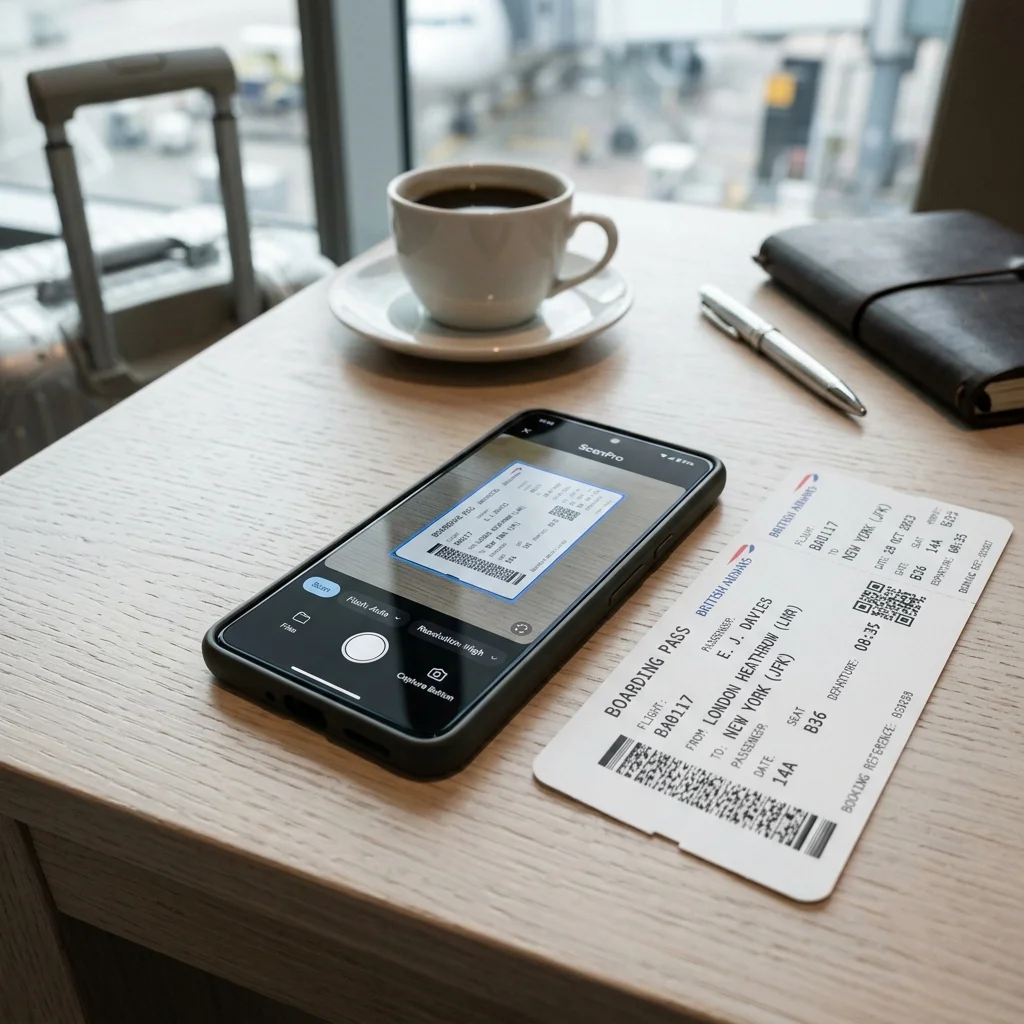
Use a dedicated document scanner app such as Microsoft Lens, Apple Notes, or Google Drive. These apps straighten edges and optimize contrast.
Always review your PDF scans before packing your bags. Confirm that every passport number, issue date, and barcode is sharp and readable.
Encrypt Sensitive Data to Prevent Identity Theft
Travel papers contain sensitive personal identity numbers. Never store unencrypted scans in open cloud storage folders or public photo libraries.
You have two reliable encryption paths, depending on the number of files you carry:
Encrypted Vaults with Cryptomator
Cryptomator is a free, open-source application that locks folders inside Dropbox, Google Drive, or iCloud. Files stay encrypted before leaving your device.
The cloud hosting provider cannot view your sensitive scans. You unlock the vault on your mobile phone using your master security passphrase.
Password Manager File Attachments
Tools like Bitwarden or 1Password provide encrypted file vaults. You attach passport scans directly to individual travel accounts or secure notes.
This works well for solo travelers carrying five or six key files. For larger families, dedicated folder vaults remain easier to navigate.
Activate Offline Availability Before Boarding
Cellular data connections frequently drop at international arrival terminals, subway stations, and remote rural bus depots.
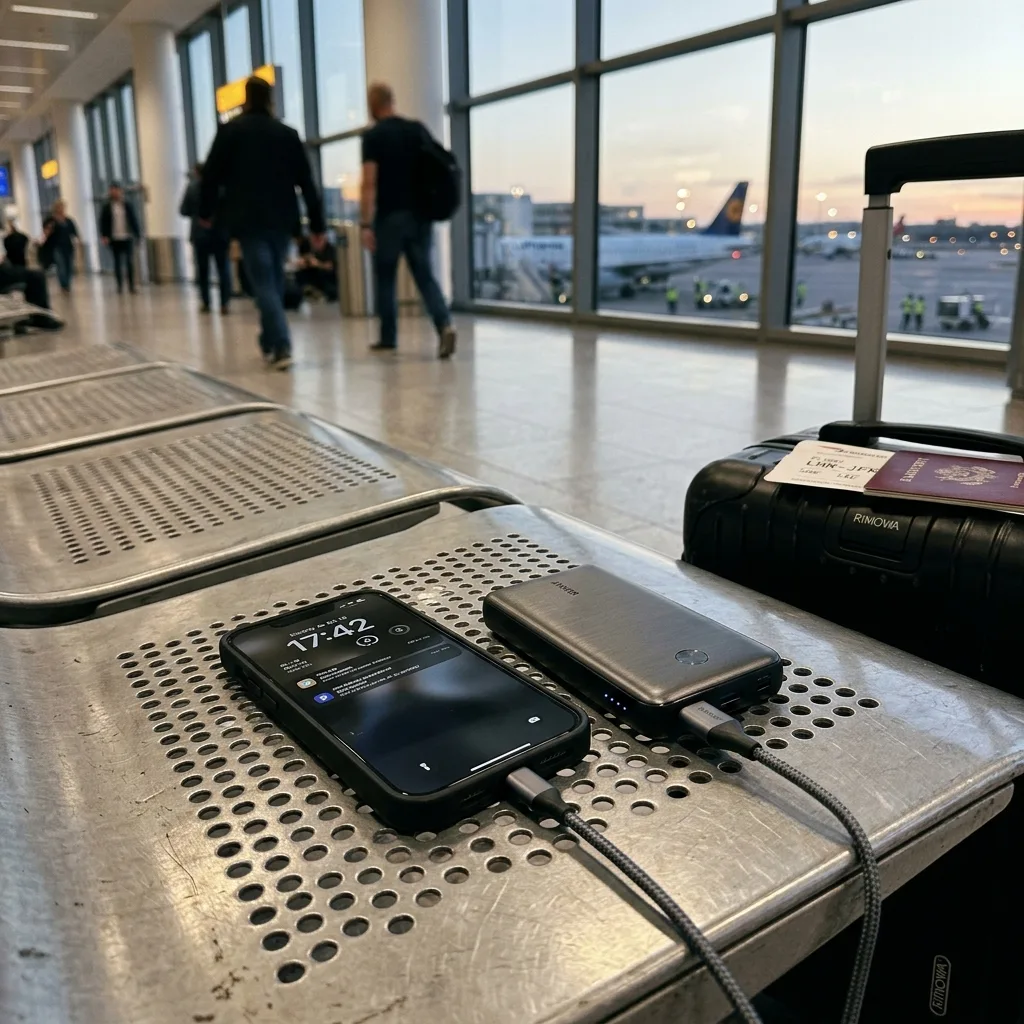
Select your entire travel document folder and toggle Make Available Offline. Test this mode at home by enabling airplane mode on your device.
Check that all PDF files open cleanly without requesting an active network connection.
Using Apple Wallet and Google Wallet for Boarding Passes
Save transport boarding passes directly to native smartphone wallets rather than digging through email inboxes.
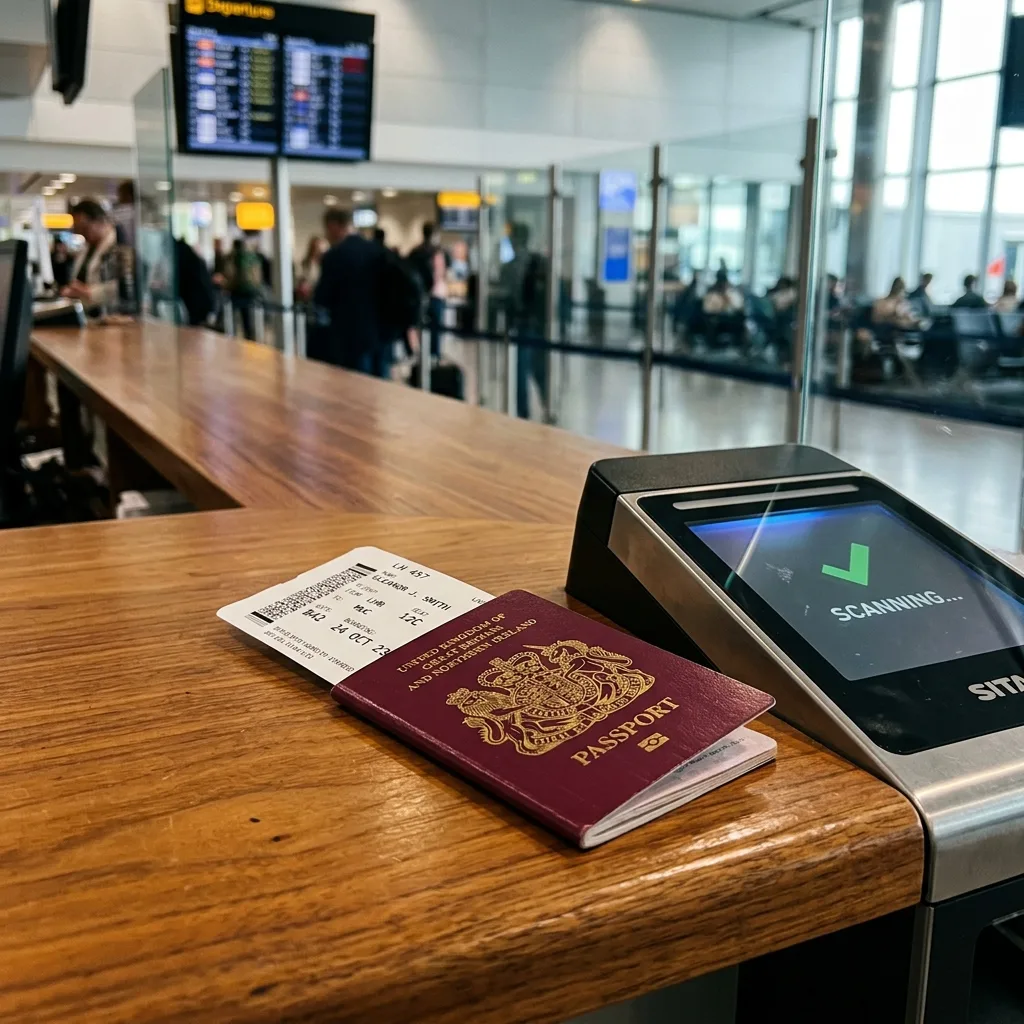
Native wallet passes load instantly from your phone lock screen. They work completely offline and automatically adjust screen brightness for gate optical scanners.
Critical Real-World Travel Rules
- A phone scan never replaces a physical passport: Border control officers always require genuine physical travel booklets.
- Avoid public airport WiFi for sensitive files: Unsecured public networks expose traffic. Use private cellular connections or trusted VPNs instead.
- Carry a hidden paper backup: Pack one printed paper scan of your passport in the bottom of your luggage away from your wallet.
- Keep a charged power bank: A dead phone battery renders a digital vault useless when boarding flights.
Frequently Asked Questions
Can I board international flights using only a digital passport scan?
No. Airline agents and immigration authorities require your original physical passport booklet. Scans serve exclusively as recovery backup.
What is the safest way to store credit card emergency numbers?
Store card cancellation phone numbers inside an encrypted password manager entry. Never keep plain photos of card security codes in standard photo albums.
Do digital wallet passes work when my phone has no cellular data?
Yes. Apple Wallet and Google Wallet store barcode data locally on the phone hardware. They scan reliably without any cellular signal.
Should I email passport copies to myself as backup?
Standard email accounts lack end-to-end encryption and face phishing risks. Use encrypted cloud vaults or secure password vaults instead.